Google Search

Custom Search

Powered by...

Find us on Facebook

Friday, 5 October 2012

Home Automation with Windows Media Center (mControl V3) integrated with VeraLite

I recently purchased a Micasaverde VeraLite Z-wave home automation gateway device, this is a small low powered router like box that becomes the primary controller of your wireless Z-wave network. Z-wave devices are things like plug-in lamp and appliance modules, replacement wall light switches, door contact sensors and PIR motion sensors, sirens, smoke alarms, key fobs and hand held controllers and more. VeraLite can control all of these types of Z-wave home automation devices, you have unlimited options for scenes, rooms, timers, events and notifications. You can read more about Vera3 and VeraLite here.


mControl by Embedded Automation is an excellent PC based home automation software suite similar to products like HomeSeer. Embedded Automation also offer a low powered embedded device called mStation, which unfortunately I haven’t had the opportunity to try out.
I have been using the mControl software for a few years now and recently upgraded from version 2.1 to their latest version 3. mControl is more comprehensive than Vera as, it can control many more types of home automation systems and devices. Some information from the mControl product page:

mControl v3 is the next generation of Embedded Automation's award-winning Digital Home Software platform. In addition to providing all of the features and functionality of mControl v2, mControl v3's platform provides many new advancements:
  • Built-in support for Embedded Automation's mBee line of ZigBee wireless technologies
  • mControl Editor - universal browser-based configuration and administration interface
  • Advanced surveillance with N-up camera display - allowing real-time streaming of standard and hi-definition IP cameras (using popular streaming standards)
  • Native iPad/iPhone App - free download from the Apple App Store mRemote (with Module Maker) - integrated remote control interface with device editor allows integration of virtually any serial, IP or infrared (IR) device
  • Enhanced mobile user interface - optimized for smart phone browsers
  • Data Logging infrastructure - captures history of status and events for analysis and when used with Embedded Automation's mChronicle utility, allows data to be sent to cloud databases for advanced analytics and charting
  • Enhanced database allows for device and macro reuse, and nested zones
  • RESTful API provides a simplified method for building apps around the mControl engine
  • Many other core and driver enhancements ... more to come
For home owners, mControl v3 provides unrivalled value for home monitoring and control - without expensive and awkward plans. mControl v3 also provides our partners a scalable platform for advanced solutions. From making your personal home a better place or deploying an energy management solution to a range of homes, mControl v3 is the foundation for the Digital Home.
image

The reason why I got in to using mControl is because of their brilliant Windows Media Center MCML add-in. This allows you to control your home from all the TV screens in the house. When I changed my primary Z-wave controller to VeraLite I was keen not to lose this functionality, I did try to integrate my existing mControl V2.1 installation with Vera but I came across some issues that I was unable to resolve, Embedded Automation support recommended I should upgrade to V3 and now everything is working. I have to say the guys at the Embedded Automation are very good and always answer my questions, which is more than I can say for the support at Micasaverde which seems to be lacking and I did not always receive a response from them and when I did it wasn’t that helpful. The upside is that the Vera user forums are much more active than the mControl ones and the expert users on the Vera forum are great and really helped me out with setting up my Vera installation.
    First we will take a look at the mControl Media Center add-in that I see on my TV screens and then I will discuss how I integrated VeraLite with mControl.
    It is possible to run scenes that have been configured in Vera from the mControl user interfaces, this screen shot shows some of the Vera scenes I have added in to mControl for example Goto Bed, Arm Doors and Disarm doors, when I click Run on one of these, mControl sends a HTTP command to the Vera box for it to run the scene.

    image

    I am also able to control Z-wave PIR sensors via the mControl interface, remember all these Z-wave devices are associated with the VeraLite box as the primary Z-wave controller, yet using the mControl Vera Luup Driver we can still use the mControl interface and have it send HTTP commands to the Vera box to control these devices and scenes. On this screen shot you can see I can Arm and Disarm my porch PIR sensor and the current status of that sensor is displayed. I can also turn on and off the Porch light which connected to a Z-wave wall switch module.

    image

    This is the Living Room zone, the lamps are connected to Z-wave plug-in dimmer modules and the electric fireplace is connected to a plug-in appliance module. The scenes you can see in this screen shot (Lounge On, Dim Lounge 75, Dim Lounge 50, Dim Lounge 25) are actually scenes I have created in mControl Editor rather than scenes that are in VeraLite, but most of my scenes are now configured and setup in VeraLite rather than in mControl.

    image

    Kitchen zone, in here I have a Z-wave dimmable wall switch connected to the main ceiling lights, I also have a plug-in Z-wave appliance module connected to my LED lighting that is in the kitchen. See my previous LED Lighting project posts for more about that! You can also see a Patio Door sensor, this is a Z-wave door contact sensor that can be armed and disarmed, if the door is opened whilst the door sensor is armed a Z-wave siren in the house will sound off at 90DB. Also if it’s night time when the armed door is opened, all the lights inside and outside the house will automatically turn on, I also receive email notifications for events such as these. Again you can see more mControl created scenes (Kitchen On, Dim Kitchen 75, Dim Kitchen 50).

    image

    One new development since using VeraLite is that using a Foscam add-in for Vera I am now able to use the motion detector on the outdoor Foscam IP camera and trigger scenes in Vera upon motion. This means I have a new Camera Sensor device showing, I was unable to do this with mControl. On this screen shot you can see an appliance module for the LED lighting in the garden, the Security Camera which the live feed can be viewed on the TV screen, and the new Camera Sensor device which can be armed / disarmed.

    image

    Master bedroom, not much going on in here, just a plug-in dimmable lamp module.

    image

    Likewise in the Kids Bedroom.

    image

    Activities – These scenes or macro’s as they are called in mControl are all scenes created using the mControl Editor rather than in VeraLite.

    image

    Here’s a few screen shots of the new mControl V3 mobile webpage:

    There does seem to be some limitation with the mControl Vera Luup Driver here, as you can see below there are no buttons to Arm or Bypass security sensors, but I can do this in mControl for Windows Media Center no problem. Hopefully Embedded Automation can resolved this.

    image

    image

    image

    Embedded Automation as of mControl V3 now have native iOS applications for iPhone, iPod Touch and iPad.
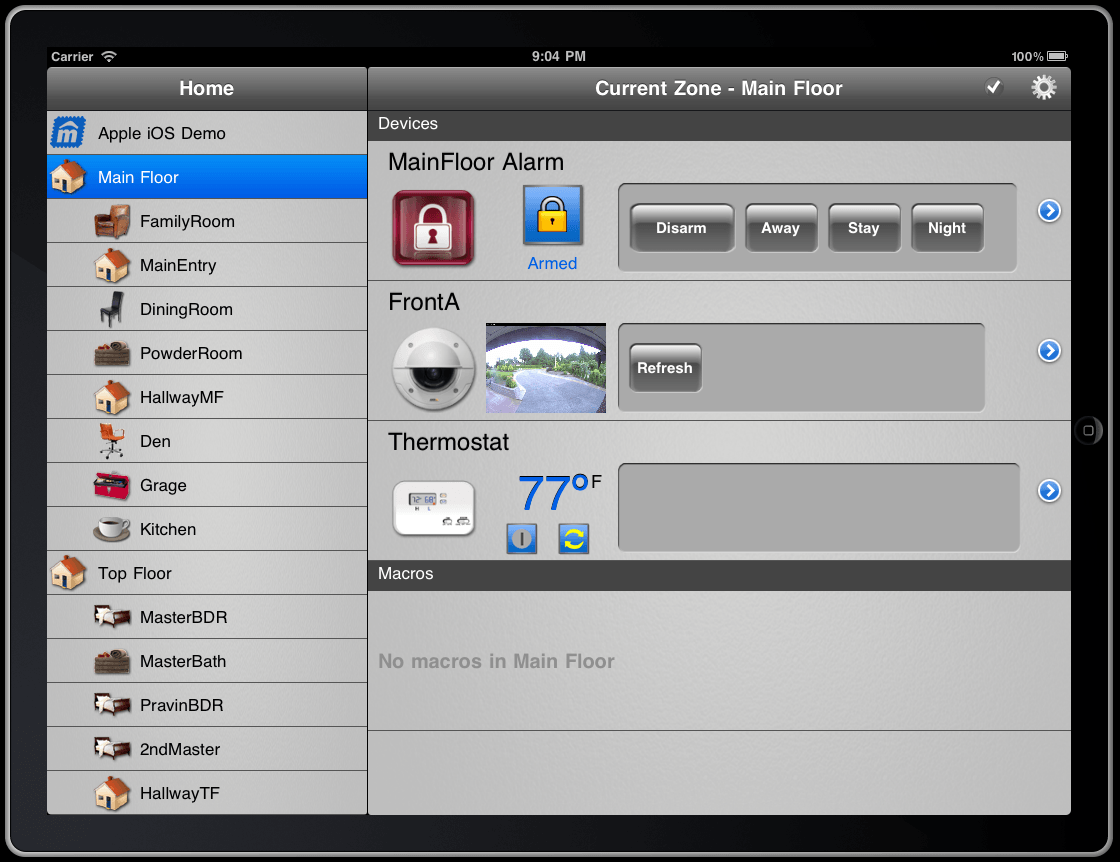


    One thing to note if you are an existing mControl V2.1 user with mPanels, mControl V3 does not support mPanels and my desktop software mPanel has stopped working.

    mControl V3 – VeraLite integration

    I previously had installed mControl V2.1 on to my WHS V1 server, that version of mControl had a proper WHS add-in for the console. Version 3 of mControl no longer supports WHS console and therefore I have lost the WHS Console add-in for mControl. This is not a big deal however. The new mControl V3 applications are based on SilverLight so they open in the browser now.

    image

    mControl Editor

    The mControl Editor is used to setup and configure mControl, this is where you can created your zones (rooms), configure mRemote which is a software remote control, IP Cameras, Devices, Macros (scenes) and more.

    image

    mControl Service Manager

    The service manager is where you setup and configure drivers. You can see from the screen shot below mControl and control allot of different systems, like Rako, Lutron, Somfy, ELK alarms panels, Insteon and more.

    Before I got my VeraLite unit, mControl was being used as the primary Z-wave controller using the Z-wave Controller driver and an Aeon Labs Z-stick 2 USB dongle. Since VeraLite is now my primary Z-wave controller I have no need to use the Z-wave Controller driver in mControl and I have sold my Aeon Labs Z-stick.

    image

    What I am using now in the mControl Services Manager is the Vera (Luup) Driver and I will take a look at this now and how you set this up. You can see the Vera Luup Driver is using HTTP to send requests to the primary Z-wave controller aka the VeraLite box. I am also using the WMC (Windows Media Center) Controller, this allows me to automatically dim and brighten lights when I play / pause video content in Media Center but that’s another blog post I think.

    image

    If you click to Configure the Vera Luup Controller you will see this dialogue. All you need to do in here is specify the internal IP address of your Vera box and then save and restart the mControl Server service.

    image

    We can now start adding devices and scenes in to mControl, but first we need to get a list of these devices and scenes that are already setup in the Vera. To do this enter this URL in to your browser, where the IP address is the IP of your Vera / VeraLite box.

    http://IP-Address/port_3480/data_request?id=lu_sdata&output_format=xml

    You will then see a page with XML code, from this page you can find the ID numbers of the devices and scenes in Vera, so for example I am going to add a device in to mControl for my Lamp (Left) in the living room. If I find that device from the XML code, I can see its device ID number is “3”

    <device name="Lamp (Left)" altid="2" id="3" category="2" subcategory="0" room="1" parent="1" status="0" level="0" state="-1" comment=""/>

    Adding a device

    Armed with this information I can now add a new device in to mControl for this lamp. Go to the mControl Editor and click the Devices tab and click the New button, you will then see this dialogue:

    image

    From the Adapter drop down menu select Vera Luup Controller

    image

    Under the Module drop down menu you can select the type of Z-wave device that you are configuring, you can also select scene from here to run a Vera scene. As we are setting up a dimmable lamp module in this example, select Dimmable Light.

    image

    One thing I really don’t like about Vera is the lack of the ability for users to pick and change device icons which is highly frustrating. However you don’t have that problem in mControl, select the desired icon for your Z-wave device, I picked the lamp icon.

    image

    Enter a name for the new device and enter the devices ID number in Vera, as we already established the ID number for this particular lamp module in Vera is 3. You can also adjust the Dim/Bright by % the default is 20%. Click OK to create your first Vera device in mControl.

    image

    The new device is then added to the list of devices. If you select the Zones Associated tab you can then associate this new device to a zone or room. This lamp is in the Living Room so right click the Living Room zone from the pane on the right and select Add Device Shortcut.

    You should be able to test your device from this screen, click the On / Off / Bright / Dim buttons etc does the lamp respond correctly?

    image

    Adding a scene

    To add a new device into mControl that can run a Vera scene, you would do the following:
    First you need to find out what the scene ID number is in Vera? I have an existing scene in Vera called “Lounge On” I now want to create a new device in mControl that can run this scene.
    Use that URL I gave earlier to load that page with the XML code on it, then find the scene from the list. As you can see my “Lounge On’ scene is ID number “1”

    <scene active="0" name="Lounge On" id="1" room="1"/>

    Now from the Devices tab in the mControl Editor select the New button again.
    Again name the device, select Vera Luup Driver, this time under module select Scene, choose an icon and specify the scene number – in this example its “1” Click OK

    image

    The new device to run the Vera scene is then listed under the device tab, again we can associate this device to a zone as before. Test the device by clicking the Apply button to run the Vera scene. The Vera scene should then be executed.

    image

    If I open the mControl Windows Media Center add-in you can see the two new (Test) devices I have just created are now visible in Media Center.

    image

    Summary

    As you can see for Windows Media Center users mControl is a great product, even for none Windows Media Center users mControl is still a powerful PC home automation system. I am very happy with mControl V3 and glad I upgraded from mControl V2.1 now that the Vera Luup Driver is working properly and this has enabled me to integrate my VeraLite Z-wave network with the mControl user interfaces. I just hope Embedded Automation have plans for an XBMC add-in?

    If you are interested in purchasing a MicasaVerde Vera Z-wave system or any Z-wave home automation devices, or are looking for a consultant to help you with your own project, you can contact me as I am an authorised dealer and can supply to you these products at slightly cheaper prices than the main UK Z-wave online stores.
    www.phaze1digital.com

    Thursday, 4 October 2012

    Add a YouTube TV icon in to Windows Media Center plus YouTube TV setup

    Following on from Ian’s recent post here about a new YouTube TV user interface at www.youtube.com/tv I wanted to set this up on my HTPC’s around the house and also configure our Android and iOS mobile devices for use with the Mobile YouTube website, where you can browse YouTube and then select videos via the mobile device and then send them for playback on the HTPC / TV.
    This works pretty well and I am glad I set it up, my wife also agrees and out of all the many audio visual and home automation things I have built in our house, this is the one feature she has said she actually likes LOL. As she can now browse YouTube on her Samsung Galaxy Tab 2 10.1 tablet and send her Thai music videos either to the TV in the living room or to the TV in our bedroom, and have the sound play out of the speakers in the room. This is the downside for me though as I am now listening to more Thai music hehe.
    First things you will notice is that www.youtube.com/tv does not work in Internet Explorer and you get a YouTube 404 not found page, you have to use Google Chrome on the HTPC. This meant I had to download and install Google Chrome on to each of my HTPC’s as I usually just use Internet Explorer on the HTPC’s.
    Once I had Chrome installed the next thing was to add an icon in to Media Center to launch YouTube TV in the Chrome browser. I just wrote a blog post here about using a utility called Relaunch to do this. So following that guide you can create a new icon in Media Center for YouTube TV as shown in the below screen shot:
    image
    You can download the YouTube .PNG image I used for the icon here from my SkyDrive.
    New YouTube TV tile in Media Center on the Extra’s menu
    image
    OK so now that you have a way to launch YouTube TV from Media Center we will take a quick look at the new YouTube TV user interface.
    Main menu:
    image
    Gaming Menu:
    image
    My Subscriptions:
    image
    Playlists:
    image
    My Uploads:
    image
    Search Results:
    image
    As you can see the user interface is pretty nice! And its certainly much better than previous 10 foot UI’s from YouTube like the XL and Leanback ones.
    Now I am going to take a look at some of the setup and settings.
    The first thing you need to do is sign in to your YouTube account
    image
    When you select Sign In you will see the screen below, open another browser tab and go to www.youtube.com/activate
    image
    You will then see this page, enter the code in and click Continue.
    image
    You will then see this screen, click Allow Access button.
    image
    You will then see Success! You can now close this browser tab and return to the YouTube TV page.
    image
    You should now be signed in to YouTube TV
    image
    The next thing to do is pair your mobile devices, in our case we have a Samsung Galaxy Tab and an iPod Touch.
    Note: Sending YouTube videos from the Android and iOS YouTube native apps to your HTPC / TV doesn’t seem to be possible. Rather than using the YouTube app you have to use their mobile site instead.
    image
    You will then see this screen, which gives you another code and suggests going to youtube.com/pair on your mobile device. However I am going to do it slightly differently as I had some issues with the same device getting paired twice and found this to be a better way of pairing your mobile device, read on..
    image
    Now pick up your mobile device and go to the mobile YouTube website. This is the URL for the YouTube mobile website : http://m.youtube.com
    The following screens are taken from the Android tablet:
    Instead of going to youtube.com/pair as suggested above, I found it better to open m.youtube.com on the mobile device, navigate to a video and then click the small TV icon with a play symbol on it, the select + Add YouTube TV
    image
    Now you see this screen, enter the Pair code you were given on the PC and name the TV, i.e. where is this HTPC located in the house? In this example I am pairing the Android tablet to YouTube TV running on the master bedroom HTPC. So I called it “Master Bedroom TV”
    image
    You should then be connected to the TV, in this case the Master Bedroom TV. You can see I can also select to play videos to the Living Room TV as well.
    image
    So now when I pressed play on this video, it did not play locally on the Android tablet, instead it played on the Master Bedroom TV screen. You can see in the above screen shot that you have pause / play / skip controls and you can move the playback slider to jump forwards or backwards in the video.
    Repeat this process for all your mobile devices you wish to pair.
    image
    If you then go back to the YouTube/TV user interface on the PC, in the settings, you can see the number of devices that have been paired. If you click in to this….
    image
    It lists the paired devices you can also disconnect all paired devices from this screen.
    image
    Overall this seems to work very well, you need to first ensure from Windows Media Center you click the YouTube TV icon to launch YouTube TV in Chrome, you can then pick up one of your mobile devices and navigate to the m.youtube.com mobile website, I created shortcut icons on the Android and iOS home pages for quick access.
    You then simple browse YouTube on the mobile device and find a video you wish to play, you then click the small grey TV icon with the play symbol in it and you get a menu where you can choose the TV screen to play to and it then plays on that TV and you have some basic transport controls on the mobile device.
    Some times the mobile device does disconnect, if you let the mobile device go to sleep and then turn it on again you may find its disconnected and you have lost your connect, I was using my Regular MCE remote control anyways with the HTPC so I could still pause and play the video in YouTube TV. I’m not sure how you get the mobile device to reconnect to the currently playing video on the TV once the connection has been lost?
    Another problem I don’t like is the videos on the TV never play in proper full screen mode, I always have two grey bars either side as shown below. If I use a mouse I can bring up some other controls at the bottom and there is an icon that looks to be a full screen button but it only changes the grey bars to big black ones instead.
    image
    Also sometimes the mouse cursor stays slap bang in the middle of the TV screen and does not disappear.
    So that’s it, give it a go I think you will like it, its certainly the best YouTube viewing experience we have had on the TV’s and its even better now because we don’t even have to navigate around a YouTube interface on the HTPC which usually sucks, we can do it in the palm of our hands!

    www.phaze1digital.com

    Add a Google Chrome icon in to Windows Media Center

    I previously wrote about a method of adding an Internet Explorer icon in to Windows Media Center here using a utility called Media Center Launcher Configurator. There is a newer utility called Relaunch which I think is a better tool for this job. You can use Relaunch to add any icon you wish in to Media Center to launch your desktop applications.  When using Relaunch to create an icon also know as a tile, when you select this icon from the Media Center menu, Media Center is automatically minimized and your desktop application launched, when you then close the launched desktop application, Media Center is automatically maximized.

    Download the latest version of Relaunch from here currently version 202. The utility is a standalone .exe file that requires no installation so you can save it and run it from any folder on your PC, I created a folder for it under C:\Program Files (x86)\Relaunch an saved the .exe in to here.
    Right click the .exe and run as Administrator

    image

    Now there are some predefined tiles you can select and add in to Media Center

    image

    We are going to create our own new custom tile.

    Under App to Launch select Custom

    With: Chrome

    Trigger: Change this to Close App (The GreenButton) trigger seems to be problematic and kept crashing Chrome on my PC.)

    Uncheck Fullsceen unless you want Chrome to be launched in to fullscreen?

    URL: You can add any URL in to the URL field this is the webpage that will be loaded when Google Chrome is launched.

    Name: Google Chrome (Name that appears under the tile in Media Center)

    Image: Browse to the path of your .PNG icon image for this custom tile. I just found one from a Google image search, if you are too lazy you can download my icon below from my SkyDrive.

    image

    Once all the fields have been populated correctly click the Add button.
    Note: I recommend you close down Media Center whilst doing this.
    After clicking add your new custom tile called Google Chrome will be listed under Current Tiles. You can select these current tiles and click the Remove button to remove the tile from Media Center.

    image

    Now open Media Center and navigate to the Extra’s Library your new Google Chrome icon will be in there.

    image

    You can then use a program like Media Center Studio if you wish to move the icon on to one of the menu strips in Media Center, I moved it to the Extra’s menu strip.

    image

    image

    How Relaunch works is it creates an MCL file under:
    C:\Users\YourUsername\AppData\Roaming\Media Center Programs

    Below you can see the code within the MCL file:

    <application run="C:\Users\Stuart\AppData\Local\Relaunch\googlechrome.exe"
    Name = "Google Chrome"
    bgcolor="RGB(0,0,0)"
    startimage="C:\Users\Stuart\AppData\Local\Relaunch\googlechrome.png"
    thumbnailImage=""
    sharedviewport="false" >
    </application>

    You can download my Google Chrome .PNG icon from here
    Now because we selected Close App as the trigger when we setup the tile in Relaunch you need some method of exiting Google Chrome on the TV screen to be returned to Media Center. If you are using a wireless keyboard/mouse or a smart phone mouse cursor app you can just click the Red X in the top right hand corner to exit Chrome and Media Center will be restored.

    I have previously programmed my Logitech Harmony universal remote control with a custom button that sends a Ctrl+F4 command to close applications down.

    Following on from Ian’s post the other day, my next blog post will be about the new www.youtube.com/tv user interface for YouTube on your big screen, I will also be using Relaunch to create an icon in Media Center to launch this YouTube TV interface in to Chrome. I will also cover some of the setup and how to connect your Android and iOS device for remote control of the YouTube TV UI.

    UPDATE: The below is from the developer of Relaunch:

    Here is some clarification:
    Close App works by waiting for chrome.exe to close and then it relaunches Media Center. Green button waits for ehome.exe (AKA Media Center) to come back into focus.  As soon as Media Center comes back into focus it will close Chrome. This later option is what you were running into.

    Close App is intended to work exactly as you are now using it.

    Green button is intended to work by launching Chrome. When the green button is pressed, Media Center will come back into focus and Chrome will be closed. By using the full screen (or kiosk mode) you can link to youtube.com/tv and have it launch without all the window trimmings and then close it and launch Media Center with the green button when you are done.


    www.phaze1digital.com

    Thursday, 16 August 2012

    mControl & VeraLite integration nightmare!

    largeVERA-LITE
    Most of you who read my blog will know I am a mControl Home Automation user and I’ve done several posts about mControl in the past. I decided to sign up for a dealership with Micasaverde and purchase a VeraLite unit for testing. My plan was always to keep mControl as its integrated in to Windows Media Center on every TV in the house!
    I was told by a friend of mine that he had successfully integrated mControl & Vera using the mControl Vera Luup Driver. With my original setup with mControl I was using an Aeon Labs Z-stick as the primary Z-wave controller, this was connected to the back of the WHSV1 server where mControl is installed. The plan when VeraLite box arrived was to use the VeraLite as the primary Z-wave controller and then use the mControl Vera Luup Driver which sends HTTP requests to Vera to control your lights and other devices, thus making the Z-stick totally redundant and no longer required. This all sounded great however now I have got the VeraLite box up and running the integration between the two systems has not gone as smoothly as I would have liked and there are two big problems that are making this integration a no go.
    I have done a YouTube video explaining what these two problems are and until I get them resolved my mControl installation is now basically broken!
    The problems in short are:
    1. Device status not being correctly updated in mControl UI - Turn lamp on via mControl UI and mControl does not update the status of the device and shows it as still OFF when actually the lamp has turned on OK. Also the dim level stays at 0% when should be 100% (Vera Luup Device Type = Dimable Light).
    2. ON button not working properly for appliance modules - The off button in mControl UI does work and the ON button also turns off the appliance. ON button does not turn on the appliance module.
    (Vera Luup Device Type = Binary Light)
    Watch the Youtube video to see what I mean, this is a call out to any other mControl and Vera or VeraLite users that have got this setup and working for any advise or possible solutions.
    There is a 3 page thread I started on the Micasaverde forum about these issues, also one here and one here on the mControl forums. I don’t know who originally wrote the mControl Vera Luup driver? I have contacted mControl support but no reply as yet. I may now contact Micasaverde support as well see if they know anything? Although I have contacted them a few days ago about another question of how to make the Z-stick a secondary to VeraLite being primary controller as I see this as a plan B if I can’t get the mControl Vera Luup driver working, but I’ve not heard from their support either yet! Not sure how long is a normal wait time?
    I am really liking Vera however in the few days I have been using it, I bought it mainly so I could have timers for lights coming on and off that will work when the mControl WHS server is in sleep mode. But Vera is showing to be a very powerful and cheap Z-wave Home Automation gateway solution. I will probably do some blog posts about Vera when I have got it all setup and know how stuff works more.

    Friday, 10 August 2012

    Stolen my blog articles and traffic for cash generation?

    Update: Blogger aka Google have now taken down the offending site. I have to say their response time was much quicker than I expected it would be, so a big thumbs up to them for sorting it out!

    Its come to my attention that there is a cloned fake “The Media Center Blog” on the Internet, the fake blog can be found here: http://phonemediacenter.blogspot.co.uk. Whoever created this blog has stolen a large selection of my past article content, every article on the fake site was originally written by myself. I can only assume they have done this to steal content and traffic to generate cash as there is a Paid-To-Promote banner at the top of the fake blog.

    I am currently discussing this with the legal team at Google with the hope that the fake blog will be taken down off the Internet. If you happen to see any other blogs that look like they contain my Media Center blog content please let me know so I can report those as well.

    I don’t know how long the fake blog has existed? But the ticker says 2000 + hits and it is now appearing in Google search results for Media Center and related keywords that I write about.

    My genuine URL’s for my two blogs are:

    http://windowsmediacenter.blogspot.co.uk/
    http://thedigitallifestyle.com/w/index.php/author/cw-kid/

    If you have a Google Blogger blog and find yourself in the same situation you can contact Google by filling out a DMCA Report.

    http://support.google.com/bin/
    request.py?&product=blogger&contact_type=lr_dmca 

    Thanks

    Stuart.