

I recently migrated to a new HP Microserver running WHS 2011 away from my old home made WHS V1 PC and wanted to get CallerID working again. First thing you need to do before you even start is ensure you have the CallerID service enabled on your land line? I contacted BT and requested the feature be added, some telco’s may add a small monthly charge for this service.
To see a list of W7 Caller ID features click here, you may also want to view some of the various demo videos that are on the website.
W7 Caller ID
One of the features is “Bluetooth support of the following smart phone brands: iPhone, Android, Windows Phone 7.5 Mango and Blackberry.” I haven’t currently set this up so will not be covering these feature, maybe in part 2.
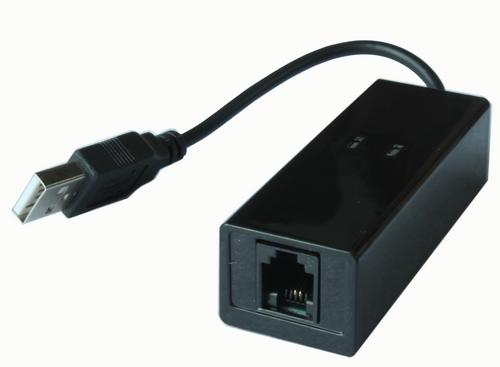
Next get yourself a compatible modem, Stan has some recommended modems on the website here, however I am in the UK and I got one of these modems off of eBay:
“Conexant USB 56K V.92 Fax Modem W2K/XP/VISTA/7 CALLERID”
Chipset set: Conexant 93010
Then head over to the W7 Caller ID website and download the software here. There are three main components of the software, Server, PC Client and MCE Client. There is also a Media Portal add-in. It is also possible to send notifications to XBMC and Apple MAC using Growl.
Read the Setup Guide here.
I installed W7CallerIDServerSetup.msi on to my WHS 2011 server. W7CallerIDClientSetup.msi on to my Windows 7 laptop and W7CallerIDMCESetup.msi on to my Windows 7 Media Center PCs.
W7 Caller ID Server: Settings

My USB modem was automatically detected, I did not need to change any settings such as the Caller ID Command. I did however click in to the modem name and rename to “Harrison Home” as the name of the modem gets displayed in MCE on the popup notification.


Bluetooth tab is for pairing a Smart Phone via Bluetooth to receive notifications. I will skip this part for now but its all covered in the Setup Guide.
The Network tab is used to configure a network listener for use with Notify Pro, again covered in the Setup Guide.
Targets tab – In here you specify the list of remote targets, these are the PCs you want to receive the notifications, in my case I have two Windows 7 HTPC’s with the W7 CallerID MCE addin installed, these use port 8000. My Windows 7 laptop / workstation only has the W7 CallerID PC client installed and this uses port 8020.

In the E-mail tab I simply added my Gmail details, using my email address in both the From and To fields, I now get notifications sent to my inbox when someone has phoned the house.

On the Import tab you can import contacts from Gmail and Outook. I did not user this feature and manually added my contacts in to the Callers List, see below.

Other tab. This is an important tab! You must ensure that you correctly configure the Phone Mask and Alternative Phone Mask before you start adding contacts in to your Callers list or the formatting of the phone numbers will be incorrect. I added my contacts before I had properly configured these Phone Masks and found I had to delete and recreate all my contacts after I had properly set the Phone Masks.
The Phone Masks you can see below are correct for the UK. (I think)
Phone Mask - 0xxxx-xxxxxx
This means the area code will start with a zero and is 5 digits long, e.g my towns area code is 01423 the X’s after the dash denote how many digits the rest of the UK land line phone number is. My phone number is 6 digits long as are all my contacts phone numbers. (Maybe they are longer in big cities?)
Alternative Phone Mask - 07xx-xxxxxxx
Is for mobile numbers, as far as I am aware all UK mobile phone numbers start with 07 and the prefix is 4 digits long, the rest of the mobile phone number is 7 digits long. Again all my contacts in my Callers List all have mobile numbers start with 07 and that length of digits.

Other things you can enable on the Other tab is MCE Pause / Continue Playback, so when a call comes in MCE will be paused and playback resumed when the call has finished, I find this works sometimes but not others, I need to test it some more. You can enable Speech so that the name and number of the caller is read out and set the Speech volume level.
It maybe worth noting the location of the Callers List database file on my server is in the Administrator users Documents folder and the file is called: W7CallerID.sdf
W7 Caller ID Server: Caller List

In the Callers List you can manually add your new contacts.

Adding a new contact, enter their name phone number and upload a picture if you wish. I am not sure what the Type field is for and have not used it.

W7 Caller ID PC Client
If you want to install the PC Client on your laptop / desktop there is not much at all to configure, just enter the host PC name of the PC Client (Not the Server). And enable Speech or not.

Logs - in the screen shot above you can see there is a Logs option, in here you can view a log of all call history, you can filter on the last number of days.

This is what the W7 CallerID PC Client – Notification looks like when it pops up

W7 Caller ID MCE add-in
After installing the MCE add-in there is nothing you can see in MCE, no new icon etc, its just a background service that runs in MCE.
This is what the MCE notification looks like when it pops up

Summary:
I think W7 CallerID is great, its certainly the most easiest CallerID program I have ever used. Quick and easy to setup. W7 Caller ID is not a free solution but is reasonably priced at $19.95. I found the developer Stan very helpful and quick to answer any questions I had, there is also a user forum here. Which I have just noticed has more details about supported modems, here is the modem I am using.
Overall if you are looking for a CallerID solution which you can integrate easily in to your Home Theatre PC’s or other PCs / Laptops and even mobile devices you can’t go far wrong with W7 CallerID.
www.phaze1digital.com


