Google Search

Custom Search

Powered by...

Find us on Facebook

Showing posts with label WHS. Show all posts

Friday, 26 November 2010

WHS V2 Vail = Fail – Tell Microsoft your thoughts on them removing Drive Extender

You have probably heard by now that some bright sparks at Microsoft have decided that removing Drive Extender from Windows Home Server Version 2 (Codename Vail) is a good idea! Well its not and it will probably kill off the WHS platform in my opinion.

I was reading this post on the subject at http://usingwindowshomeserver.com and in the comments I noticed a link to a thread on the Microsoft Connect (Beta) website.

You will need a Connect account to access this page or you will get an error, but I highly suggest if you want to vote and express your comments to Microsoft this is probably the best place to do it. So please take the time to register and get on Connect if you can. You can find the thread on Connect here.

https://connect.microsoft.com/WindowsHomeServer/feedback/details/624029/add-drive-extender-back-to-vail

There are currently 2852 Votes in favour of keeping Drive Extender in Vail and 37 against. There are currently 775 comments that have been posted by users.

Click here for larger image

The comment I posted on the Microsoft Connect thread can be seen below and clearly expresses my disbelief in this announcement.

I am totally shocked and amazed that Microsoft would think that removing Drive Extender from WHS V2 would be a good idea. Duh which idiots make these decisions?
I just got the link to this Connect thread from this blog post here:
http://usingwindowshomeserver.com/2010/11/23/microsoft-announces-the-removal-of-drive-extender-from-windows-home-server-code-name-vail/
Microsoft please read the user comments on the above blog post and the many other blog posts on the Internet, where this news about Drive Extender being removed has been announced.
The comments left on this Microsoft Connect thread are only a tiny minority of users who have a Connect login account, there must be 1000's of others who also want to see that Drive Extender does remain in the WHS product, who can't post here.
I certainly won't be upgrading to WHS V2 if Drive Extender is removed and neither will our Media Center customers.
Sort it out Microsoft and get your act together !

Stuart aka CW-KID

Microsoft Windows Entertainment and Connected Home MVP

Thursday, 14 October 2010

Two highly recommended WHS V1 add-ins

I recently built my first WHS for my own home using my old desktop PC and whatever bits I had lying about the place. I’ve build several high-end rack mount WHS boxes for clients before, but not one for myself!

During this setup process I discovered two WHS add-ins that have made my system all the more better. These are not new or free add-ins and some of you will be using them already, however as I liked them so much I wanted to mention them here on my blog.

The first is called Disk Management for Windows Home Server, by Tentacle software you can see their webpage here.

Description

“Disk Management is an Add-In for Microsoft Windows Home Server. This Add-In is designed for users who need more detail about their server's storage status than what the standard Server Storage interface provides.”

Features:

  • Detailed information for each disk in your Windows Home Server
  • Real-time temperature and activity monitoring
  • Capacity indicators for individual disks
  • Customizable disk names
  • Customizable 3D wireframe representation of your server

As soon as I’d create the 3D wireframe representation of my server and seen what information this add-in was now displaying to me in the WHS console, I bought a licence for it there and then! And also thought why didn’t Microsoft do this?

I can now see the used space on each individual hard disk, see temp stats, read/write activity indicators etc.

Overall an extremely useful add-in and worth the asking price.

Add-in #2

The next add-in I wanted to mention is called Lights Out. You can find the webpage for Lights Out here which is a blog done by some German dudes, if you scroll further down this page however they have kindly also written in English.

Now usually I am pretty bad with leaving PC’s turned on and running 24/7. At work I’d always leave my workstation(s) running constantly whilst everyone else was expected to shutdown their machines down every night, must be an I.T. guy thing! And even at home I use to leave my desktop running all the time. However I must be getting more green as I get older or more likely the cost of energy these days has gone up massively and I’m thinking about my wallet more.

So I wanted some way to turn my “recycled” WHS off when not in use, thankfully there is a brilliant add-in as I said called Lights Out which fits the bill! No pun intended.

Below is a bit from their website:

Lights-Out – The name says it all

“This Add-In is used to put a Windows Home Server into suspended mode or hibernation and resume on user defined events.”

Mode of operation

“Lights-Out monitors several sources for activity. As long as one source signals activity, the server is kept running. When the monitoring detects no more activity, the server is disabled.”

Basically it detects when your Windows PC clients (WHS clients) are active. There is also a Windows Client bit of software that you can install, this runs in the system tray and allows you from this icon to suspend an wakeup the server manually. You can also add IP devices to be monitored. For example I gave my XBOX 360 static IP address and then added this address to be monitored in the Lights Out settings.

The best thing about this for me, apart from it automatically putting your WHS to sleep (suspend) and then waking it up again when any clients connect, is the Up Time Diagram. The screen shot on their website doesn’t have much detail in it, the one below is from my own WHS.

You can easily see what is active and when! Great for routing out any problems with something staying awake and what time it woke etc.

On the 12 and 13th of October you can see I had a problem and the WHS and HTPC (MCX01) were on most of the night. Initially I thought it was the HTPC not going back to sleep after the WHS backup. However after seeing the start and end time of the backup I ruled that out as the problem.

Noting they woke at 2:30am, I then changed the Media Center update task on my main HTPC to run at 7PM instead of the default which is 2:30am The next night on the 14th both stayed sound asleep!

Up Time Diagram:

Click here for larger image

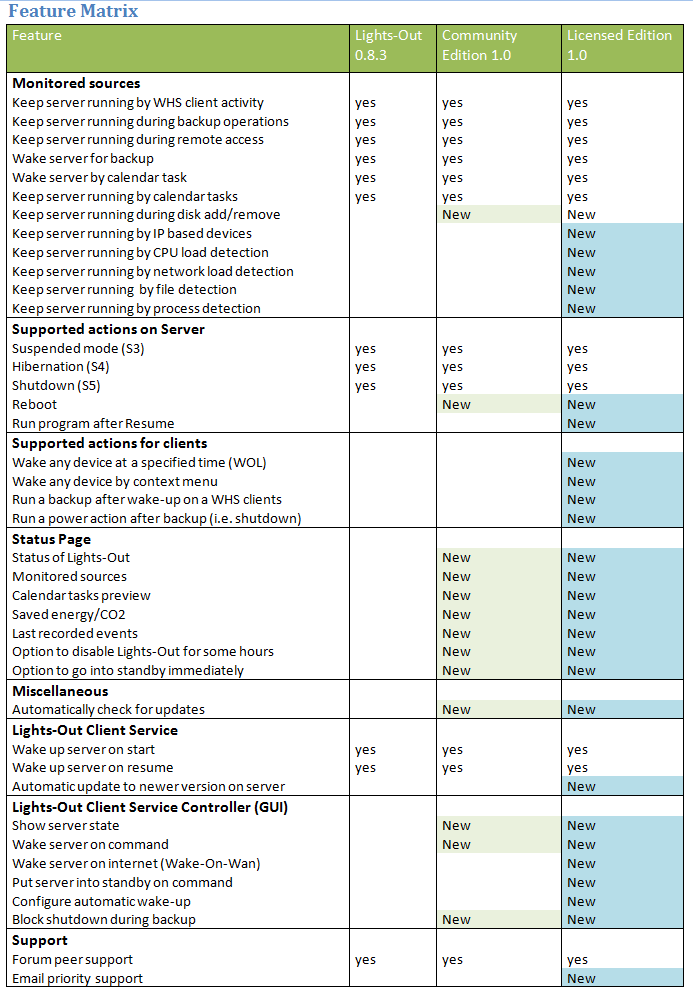
I’m still on the free trial, there is a free community edition and a paid version, there is a matrix comparison here I’m not quite sure yet what will stop working when my trial runs out however.

The only issue I have with Lights Out, is that I have a monitor keyboard and mouse hooked up to my WHS that is in the office room. If I am the WHS console directly it keeps going to sleep on me automatically if no other clients are active on the network. I have to remember to disable the Lights Out first.

Overall it works well and its certainly worth checking out. I just hope both of these types of features will be native in WHS Vail or these 3rd party developers release new versions for WHS Vail.

www.phaze1digital.com

Sunday, 23 August 2009

Part 2: My Movies for Windows Home Server

In part one we looked at the My Movies for WHS installation and configuration, now we need to install the My Movies client software on your VMC PC so you can manage your movie collection.

You can download the My Movies Client from the download page here.

Make sure you get the My Movies Client Edition for either x86 or x64 and not the My Movies Server and Client Edition.

My Movies Client installation

image

Once you have installed the software launch the My Movies Collection Management program. You should be prompted to enter the server name you want to connect to. Enter the name of your WHS box.

image

Note: I already had the My Movies Server and Client Edition installed on my Vista PC, so first I had to remove it from add/remove programs, I also removed all the MS SQL components as these were no longer required as they are now hosted on the WHS. And then just installed the My Movies Client Edition.

Once in the Collection Management program, my movie titles were then all listed on the left hand side. If you are doing a refresh installation with no previous database having been restored then you will see no titles listed here until some new ones have been added.

image

Setup Folder Monitoring

Select the Configure menu and then Options. Select Folder Monitoring. In here you add the paths to the folders you would like My Movies to Monitor.

Also select an Operating Type and Operating Location. I personally normally choose Confirmative in Collection Manager. But you may want the notifications to appear in Media Center when new titles are added, so you would change the Operating Location to Media Center.

image

My Movies will then auto detect the movies in the monitored folders and try it’s best to add a matching title in to the database.

I find that it is not always 100% accurate which is why I set it to Confirmative, so it asks me first before just adding an incorrect title.

image

I will now briefly run through adding a new movie title manually, you may do this if you are not using folder monitoring or you want to add titles for some of your movies that have not been detected.

Click the Title pull down menu and select Add Title or just click the Add Titles button the menu bar.

image

Go to the By Title tab enter the name of the movie or if you have the original disk you could use the By Barcode tab, select the country, I normally leave it on United States and select the type, DVD or Blu-ray etc. Then click on the search button.

image

Choose a title from the search results and click Add Online

image

Then browse to the folder where this movie is stored.

image

Once it has been added click Add to Owned for keeps button.

Note: I always use UNC paths rather than local ones like D:\Movies

For example: \\WHS\\Movies\HD\Gladiator

The Progress is then shown as My Movies downloads the information and adds the title to your database.

image

The title is then added.

Tip: Click the Disc(s) button you may find it has added more than one disk if the movie was listed as a two disk edition, when you only wanted one as you don’t have the second disk on your system. You can simply remove the second disk and save the title.

image

My Movies in Media Center

This is the My Movies version 2 user interface in Media Center, it is looking dated now as it’s HTML based and not a native MCML Media Center application, especially when compared to the likes of Media Browser.

However I am hoping that the new My Movies version 3 due for beta release in September, will be a suitable replacement to Media Browser as it goes commercial, I know I would prefer to use My Movies if I can.

image

Disk ripping process on the WHS

Audio CD’s:

After installing AnyDVD HD on the WHS, I inserted an Audio CD. I could see that the light on the DVD Drive was flashing away and I could hear it had spun up. After a few minutes the CD was ejected.

On my PC, I then browsed to the folder I had told My Movies for WHS to rip my audio CD’s to and in there I could see that it had created a folder for this artist with a sub folder with the albums name. In here I had WMA files and even a 500x500 resolution folder.jpg for the front cover sweet! This particular CD was 171 MB in file size that’s using WMA Lossless.

I then went in to my music library in Media Center but I could not see the new album. So I opened WMP11 and refreshed the library to add the album. My newly ripped album then appeared in WMP11/VMC. Man that was pretty simple. I guess if I was more patient the album would have eventually just appeared in Media Center of it’s own accord.

My Music Disc Copier in the WHS Console - Completed rip status Done.

image

DVD / Blu-ray / HDDVD:

I then dug out a DVD movie (The Big Lebowski) and inserted the disk in to the DVD drive on the WHS machine.

In the WHS Console you can go to the My Movies Disc Copier to see what’s happening.

image

image

I have to say I am pretty impressed with the ripping features in My Movies for WHS, I won’t be able to test a Blu-ray disk however as I don’t have a Blu-ray drive on the WHS box. But it makes it very easy for any family member to insert a disk in to the WHS and add it to the collection and for it to appear in Media Center.

Two things I would like to see however, support for ripping DVD’s to DVR-MS and the option to specify individual shared folders for DVD and Blu-ray. Rather than only being able to choose one folder for both.

Summary

I really like My Movies for Windows Home Server. I think if you already have a WHS in the house and you are also a Media Center user, it seems a no brainer to also have the My Movies database installed on the WHS for central access by all HTPC clients and to also take advantage of those easy to use ripping features. So simple anyone in the house can add content to the system.


Clubhouse Tags: Clubhouse”, Media Center”, Story”, My Movies for Windows Home Server

Wednesday, 12 August 2009

Part1: My Movies for Windows Home Server

I recently decided to check out My Movies for Windows Home Server, in part one we will look at the installation and configuration.

If you have a WHS on your home network, it is the logical place to install your My Movies database and then your Windows Media Center PC clients can access this centrally stored information.

My Movies can be used to get rich metadata for your movie collection, there is a large online database and most titles can be found in there. Using My Movies is an easy way to get front covers, synopsis and actor information and more for each of your movie titles.

You can use My Movies own Media Center user interface to browse and play your movies, or you can use other third party plug-ins such as Media Browser and Open Media Library.

You can download My Movies for Windows Home Server here

Installation is easy just follow the wiki guide here
image

Once you have My Movies for Windows Home Server installed you need to configure it. This is also covered in the wiki guide.

If you don’t have a My Movies user account you will need to create one by registering on the My Movies forums here.

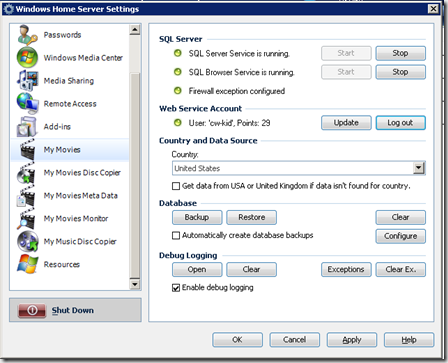
Below you can see some of the configuration options I setup.

The default country is United States, I also selected the option get data from the USA or UK if data isn’t found for your country.

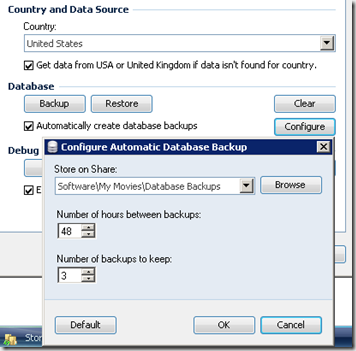
I also selected Automatically create database backups, this will backup your My Movies database to a file in case you have any database issues later and you need to restore.

The default path is in the Software shared folder on the WHS.
image

My Movies Disc Copier

The disc copy service is not available in the free version of My Movies for Windows Home Server. This enables users to copy DVD’s, HD-DVD, Blu-ray and Audio CD’s simply by inserting a disk in to the Optical drive on the Windows Home Server.

You can however earn this feature if you have 1250 points. Contributor points are awarded by the My Movies service, for titles and information you add to the online database using the My Movies Collection Management program.

Alternatively you can purchase My Movies from an authorised dealer.

Note: if you wish to copy protected disks to your WHS then you will also need AnyDVD / AnyDVD HD installed on the server.

image

After installing a My Movies for Windows Home Server licence file, this option is then enabled.

Now you can select the format you want to rip the disc’s to?

DVD Target Format:

  • ISO File
  • VIDEO_TS Folder
  • MPEG-2 File
  • VIDEO_TS Folder and MPEG2 File

Blu-ray and HD DVD Target Format:

  1. ISO File
  2. BDMV or HDDVD Folder

image

I would rather see a DVR-MS option on the DVD Target Format over MPEG-2, as the FFWD/Skip works better on DVR-MS files on Media Center Extenders. But I have been told the developers are thinking about adding support for DVR-MS in the future, lets hope they do!

However as that option is not here, I am going to select MPEG-2 File. For Blu-ray I will use ISO File.

I’m not so sure about the next option. Store on Share. There is only the option to select one folder share. With my current setup my DVD rips and Blu-ray rips are in two different folders. This forces me to lump all my discs rips together in just one folder.

My Movies Meta Data

I’m going to go with the default options here and not change anything.

The main item to note here for Media Center users is that the top option is selected.

Store meta-data for Media Center DVD/Movie library (dvdid.xml files)

image

My Movies Monitor

Here you can tell My Movies which folders you want it to monitor for movies and which file extensions.

I’ve added in two folders one is my DVD folder the other is the Blu-ray folder. The list of file extensions is comprehensive and I did not need to add anything else in to the list. Don’t forget to hit the Start button!

image

My Music Disc Copier

This is new to me and something I have not seen before looking at the My Movies WHS add-in. You can rip Audio CD’s in Windows Media Center natively with what Microsoft have provided so it will be interesting to see what this My Movies feature adds to this area.

The service is not started by default.

Target Format options:

  • Free Lossless Audio Codec (.Flac)
  • MPEG-1 Audio Layer (.MP3)
  • Wave (.WAV)
  • Windows Media Audio (.WMA)

image

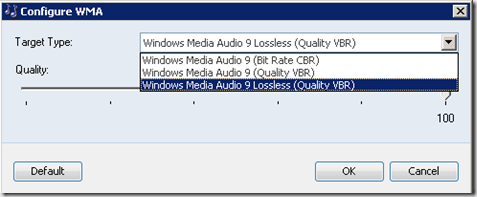
I’d usually select MP3 but WMA might be a better option because if you click the Configure button you can choose WMA Lossless.
image

From the Wiki:

“On the tab "My Music Disc Copier", you can choose to start the My Music Disc Copier service. You should also configure which target format you would like the Music Disc Copier to copy to - recommended is Windows Media Audio Lossless, since it does not decrease the audio quality of your music.”

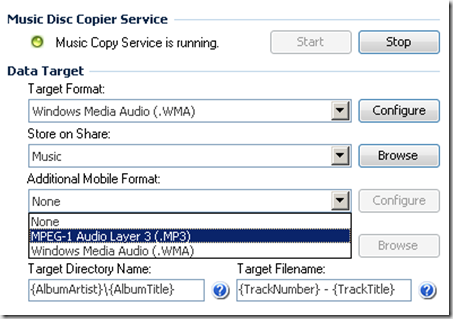
Store on Share: here you select the shared folder where you store your music files.

There is also an option for Additional Mobile Format. With options for MP3 and WMA. I guess if your main music collection was all in Lossless .Flac for example you might use this option to have MP3’s on your mobile device.
image

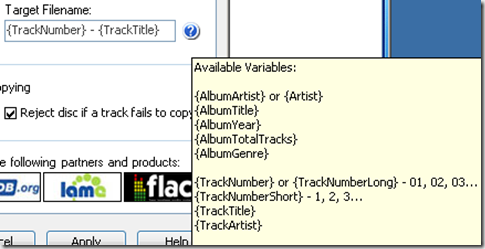
Target Directory Name, I was happy with the default variable, other possible variables you can use are shown in yellow.

image

Target File Name, again I left this with the default variable.
image

Backup / Restore

image

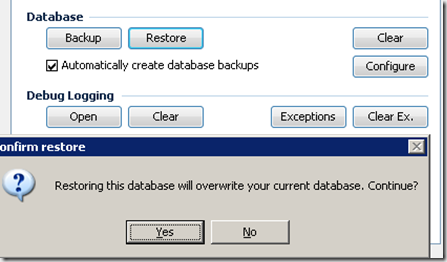
I previously had an other Server/Client installation of My Movies on a Vista Media Center PC and I have a good clean database already from that installation, so I exported the data to a backup.mmb file using the My Movies Collection Management program on that PC and then imported it in to the WHS My Movies database using the WHS Console UI.

I don’t need to worry about the file paths being wrong for the movie titles, as they where looking at the WHS Video shared folder anyways using UNC paths \\WHS\Videos\Movies\DVD\Ronin etc, so everything should be good to go.
image

image

Obviously if you are starting from a refresh and do not have a previous My Movies database you want to restore, then you won’t need to do this and you will just be starting from a blank database which is created during this setup, which you will then populate with your Movie titles as you rip them to your system.
Summary

In part two we will look at connecting the My Movies Collection Management program to our new My Movies database on the WHS. We will also have a look at some of the features in the Collection Management program and some of the My Movies features in the Media Center user interface.