Google Search

Custom Search

Powered by...

Find us on Facebook

Saturday, 29 August 2009

Intel finally release Windows 7 graphics drivers

I’ve just noticed on the Intel downloads website that they now have drivers listed for Windows 7. This is the first time I have seen this and I was previously using the Vista drivers for Windows 7.

I’ve just updated my graphics drivers for the Intel G45 express chipset on my motherboard. Not sure what took Intel so long to get these drivers out? But if you are running with an Intel graphics based system you might want to head over to their download site and update your drivers if you haven’t already.

The new drivers I downloaded today for my system have a date stamp of the 19/08/2009 version 15.15.4.1872. Or if your American 08/19/2009.

Sunday, 23 August 2009

Part 2: My Movies for Windows Home Server

In part one we looked at the My Movies for WHS installation and configuration, now we need to install the My Movies client software on your VMC PC so you can manage your movie collection.

You can download the My Movies Client from the download page here.

Make sure you get the My Movies Client Edition for either x86 or x64 and not the My Movies Server and Client Edition.

My Movies Client installation

image

Once you have installed the software launch the My Movies Collection Management program. You should be prompted to enter the server name you want to connect to. Enter the name of your WHS box.

image

Note: I already had the My Movies Server and Client Edition installed on my Vista PC, so first I had to remove it from add/remove programs, I also removed all the MS SQL components as these were no longer required as they are now hosted on the WHS. And then just installed the My Movies Client Edition.

Once in the Collection Management program, my movie titles were then all listed on the left hand side. If you are doing a refresh installation with no previous database having been restored then you will see no titles listed here until some new ones have been added.

image

Setup Folder Monitoring

Select the Configure menu and then Options. Select Folder Monitoring. In here you add the paths to the folders you would like My Movies to Monitor.

Also select an Operating Type and Operating Location. I personally normally choose Confirmative in Collection Manager. But you may want the notifications to appear in Media Center when new titles are added, so you would change the Operating Location to Media Center.

image

My Movies will then auto detect the movies in the monitored folders and try it’s best to add a matching title in to the database.

I find that it is not always 100% accurate which is why I set it to Confirmative, so it asks me first before just adding an incorrect title.

image

I will now briefly run through adding a new movie title manually, you may do this if you are not using folder monitoring or you want to add titles for some of your movies that have not been detected.

Click the Title pull down menu and select Add Title or just click the Add Titles button the menu bar.

image

Go to the By Title tab enter the name of the movie or if you have the original disk you could use the By Barcode tab, select the country, I normally leave it on United States and select the type, DVD or Blu-ray etc. Then click on the search button.

image

Choose a title from the search results and click Add Online

image

Then browse to the folder where this movie is stored.

image

Once it has been added click Add to Owned for keeps button.

Note: I always use UNC paths rather than local ones like D:\Movies

For example: \\WHS\\Movies\HD\Gladiator

The Progress is then shown as My Movies downloads the information and adds the title to your database.

image

The title is then added.

Tip: Click the Disc(s) button you may find it has added more than one disk if the movie was listed as a two disk edition, when you only wanted one as you don’t have the second disk on your system. You can simply remove the second disk and save the title.

image

My Movies in Media Center

This is the My Movies version 2 user interface in Media Center, it is looking dated now as it’s HTML based and not a native MCML Media Center application, especially when compared to the likes of Media Browser.

However I am hoping that the new My Movies version 3 due for beta release in September, will be a suitable replacement to Media Browser as it goes commercial, I know I would prefer to use My Movies if I can.

image

Disk ripping process on the WHS

Audio CD’s:

After installing AnyDVD HD on the WHS, I inserted an Audio CD. I could see that the light on the DVD Drive was flashing away and I could hear it had spun up. After a few minutes the CD was ejected.

On my PC, I then browsed to the folder I had told My Movies for WHS to rip my audio CD’s to and in there I could see that it had created a folder for this artist with a sub folder with the albums name. In here I had WMA files and even a 500x500 resolution folder.jpg for the front cover sweet! This particular CD was 171 MB in file size that’s using WMA Lossless.

I then went in to my music library in Media Center but I could not see the new album. So I opened WMP11 and refreshed the library to add the album. My newly ripped album then appeared in WMP11/VMC. Man that was pretty simple. I guess if I was more patient the album would have eventually just appeared in Media Center of it’s own accord.

My Music Disc Copier in the WHS Console - Completed rip status Done.

image

DVD / Blu-ray / HDDVD:

I then dug out a DVD movie (The Big Lebowski) and inserted the disk in to the DVD drive on the WHS machine.

In the WHS Console you can go to the My Movies Disc Copier to see what’s happening.

image

image

I have to say I am pretty impressed with the ripping features in My Movies for WHS, I won’t be able to test a Blu-ray disk however as I don’t have a Blu-ray drive on the WHS box. But it makes it very easy for any family member to insert a disk in to the WHS and add it to the collection and for it to appear in Media Center.

Two things I would like to see however, support for ripping DVD’s to DVR-MS and the option to specify individual shared folders for DVD and Blu-ray. Rather than only being able to choose one folder for both.

Summary

I really like My Movies for Windows Home Server. I think if you already have a WHS in the house and you are also a Media Center user, it seems a no brainer to also have the My Movies database installed on the WHS for central access by all HTPC clients and to also take advantage of those easy to use ripping features. So simple anyone in the house can add content to the system.


Clubhouse Tags: Clubhouse”, Media Center”, Story”, My Movies for Windows Home Server

Wednesday, 12 August 2009

Part1: My Movies for Windows Home Server

I recently decided to check out My Movies for Windows Home Server, in part one we will look at the installation and configuration.

If you have a WHS on your home network, it is the logical place to install your My Movies database and then your Windows Media Center PC clients can access this centrally stored information.

My Movies can be used to get rich metadata for your movie collection, there is a large online database and most titles can be found in there. Using My Movies is an easy way to get front covers, synopsis and actor information and more for each of your movie titles.

You can use My Movies own Media Center user interface to browse and play your movies, or you can use other third party plug-ins such as Media Browser and Open Media Library.

You can download My Movies for Windows Home Server here

Installation is easy just follow the wiki guide here
image

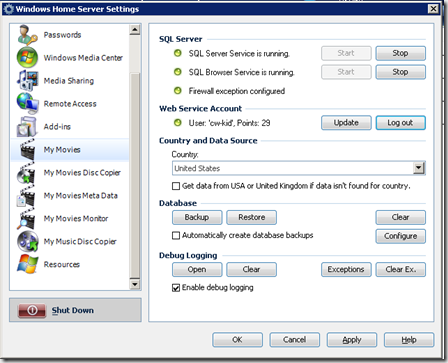
Once you have My Movies for Windows Home Server installed you need to configure it. This is also covered in the wiki guide.

If you don’t have a My Movies user account you will need to create one by registering on the My Movies forums here.

Below you can see some of the configuration options I setup.

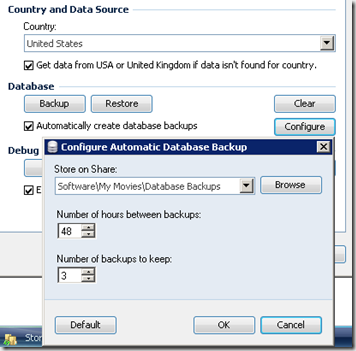
The default country is United States, I also selected the option get data from the USA or UK if data isn’t found for your country.

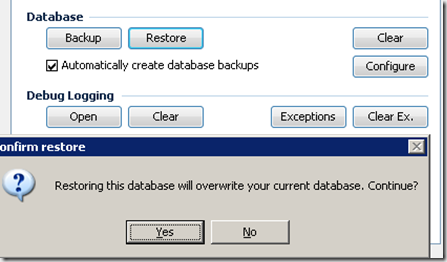
I also selected Automatically create database backups, this will backup your My Movies database to a file in case you have any database issues later and you need to restore.

The default path is in the Software shared folder on the WHS.
image

My Movies Disc Copier

The disc copy service is not available in the free version of My Movies for Windows Home Server. This enables users to copy DVD’s, HD-DVD, Blu-ray and Audio CD’s simply by inserting a disk in to the Optical drive on the Windows Home Server.

You can however earn this feature if you have 1250 points. Contributor points are awarded by the My Movies service, for titles and information you add to the online database using the My Movies Collection Management program.

Alternatively you can purchase My Movies from an authorised dealer.

Note: if you wish to copy protected disks to your WHS then you will also need AnyDVD / AnyDVD HD installed on the server.

image

After installing a My Movies for Windows Home Server licence file, this option is then enabled.

Now you can select the format you want to rip the disc’s to?

DVD Target Format:

  • ISO File
  • VIDEO_TS Folder
  • MPEG-2 File
  • VIDEO_TS Folder and MPEG2 File

Blu-ray and HD DVD Target Format:

  1. ISO File
  2. BDMV or HDDVD Folder

image

I would rather see a DVR-MS option on the DVD Target Format over MPEG-2, as the FFWD/Skip works better on DVR-MS files on Media Center Extenders. But I have been told the developers are thinking about adding support for DVR-MS in the future, lets hope they do!

However as that option is not here, I am going to select MPEG-2 File. For Blu-ray I will use ISO File.

I’m not so sure about the next option. Store on Share. There is only the option to select one folder share. With my current setup my DVD rips and Blu-ray rips are in two different folders. This forces me to lump all my discs rips together in just one folder.

My Movies Meta Data

I’m going to go with the default options here and not change anything.

The main item to note here for Media Center users is that the top option is selected.

Store meta-data for Media Center DVD/Movie library (dvdid.xml files)

image

My Movies Monitor

Here you can tell My Movies which folders you want it to monitor for movies and which file extensions.

I’ve added in two folders one is my DVD folder the other is the Blu-ray folder. The list of file extensions is comprehensive and I did not need to add anything else in to the list. Don’t forget to hit the Start button!

image

My Music Disc Copier

This is new to me and something I have not seen before looking at the My Movies WHS add-in. You can rip Audio CD’s in Windows Media Center natively with what Microsoft have provided so it will be interesting to see what this My Movies feature adds to this area.

The service is not started by default.

Target Format options:

  • Free Lossless Audio Codec (.Flac)
  • MPEG-1 Audio Layer (.MP3)
  • Wave (.WAV)
  • Windows Media Audio (.WMA)

image

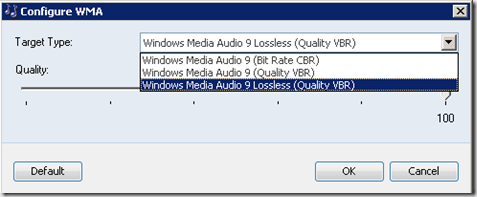
I’d usually select MP3 but WMA might be a better option because if you click the Configure button you can choose WMA Lossless.
image

From the Wiki:

“On the tab "My Music Disc Copier", you can choose to start the My Music Disc Copier service. You should also configure which target format you would like the Music Disc Copier to copy to - recommended is Windows Media Audio Lossless, since it does not decrease the audio quality of your music.”

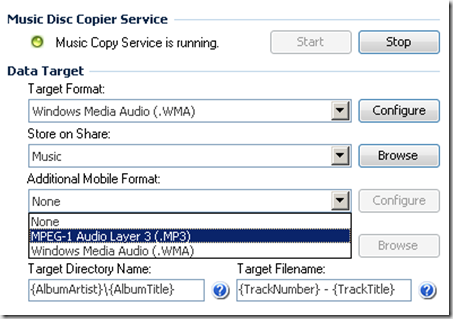
Store on Share: here you select the shared folder where you store your music files.

There is also an option for Additional Mobile Format. With options for MP3 and WMA. I guess if your main music collection was all in Lossless .Flac for example you might use this option to have MP3’s on your mobile device.
image

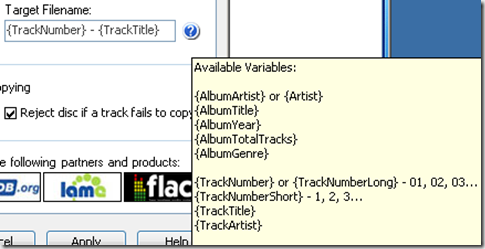
Target Directory Name, I was happy with the default variable, other possible variables you can use are shown in yellow.

image

Target File Name, again I left this with the default variable.
image

Backup / Restore

image

I previously had an other Server/Client installation of My Movies on a Vista Media Center PC and I have a good clean database already from that installation, so I exported the data to a backup.mmb file using the My Movies Collection Management program on that PC and then imported it in to the WHS My Movies database using the WHS Console UI.

I don’t need to worry about the file paths being wrong for the movie titles, as they where looking at the WHS Video shared folder anyways using UNC paths \\WHS\Videos\Movies\DVD\Ronin etc, so everything should be good to go.
image

image

Obviously if you are starting from a refresh and do not have a previous My Movies database you want to restore, then you won’t need to do this and you will just be starting from a blank database which is created during this setup, which you will then populate with your Movie titles as you rip them to your system.

Summary

In part two we will look at connecting the My Movies Collection Management program to our new My Movies database on the WHS. We will also have a look at some of the features in the Collection Management program and some of the My Movies features in the Media Center user interface.

Monday, 27 July 2009

An in depth look at Casa Tunes

Casa Tunes Review Document

Mirror Link

Ever since I first got in to Media Center, one of the first things I started searching for was a whole home audio solution that played nicely with Media Center. I liked the idea of being able to play the same music in two different rooms at the same time and for it to be in sync. I liked the idea of being able to play different music in different rooms at the same time and also to have a party mode where all rooms would play the same music at the same time. Zoned Audio!

Unfortunately Windows Vista / Seven Media Center does not provide these features out of the box so your only option is a 3rd party solution.

Searching Google nearly 3 years ago and Casa Tunes was the only real thing I could find and over this time things remain pretty much the same. Recently I’ve had the opportunity to take an in depth look at Casa Tunes which is a whole home audio solution with Windows Media Center integration. I’ve written a detailed review of this product and anyone who is seriously interested in purchasing Casa Tunes should take a look at the review here which is in PDF format.

Overall I like the Casa Tunes concept and functionality and the way it works, read the full review for my thoughts about the product.

zoned audio

Clubhouse Tags: Clubhouse”, Media Center”, Story”, Casa Tunes”, Zoned Audio

Thursday, 23 July 2009

Windows 7 released to manufacturing

We just noticed that Windows 7 RTM has been released. More details can be found on the Windows Team Blog.

I’ve just check my MSDN subscription however and its not yet listed on there for download, looks like we will have to wait a little while longer!

(Update: 6th of August for MSDN and Technet subcribers)

“I am pleased to announce that Windows 7 has RTM’d!

As I mentioned previously, RTM officially happens only after sign-off occurs. What happens is a build gets designated as a RTM contender after going through significant testing and meeting our quality bar for RTM. Then, it goes though all the validation checks required for RTM including having all languages of that build completed. If all the validation checks have passed – sign-off for RTM can occur. Today after all the validation checks were met, we signed off and declared build 7600 as RTM. “

Full article

When will you get Windows 7 RTM?

Wednesday, 22 July 2009

A look at the Luxa2 LM Series – HTPC Cases

Here we have two HTPC cases from Luxa2. On the bench today I have the LM 200 and LM 300 Pro models and the first thing you notice about these cases when viewing them in person is their size, they are massive and I mean big!

LM 300 Pro - Dimensions

image

Height:
203.5mm (8.01 inches) / food stand included: 218mm (8.58 inches)

Width:
460mm (18.11 inches)

Depth:
410mm (16.14 inches)

However they look like really expensive bits of kit. The finish is excellent in Aluminium and the build quality has an attention to detail.

They both have a IR/VFD display from Soundgraph with the usual Imon Pad remote control. There are some control buttons on the front of the case, however not all of which are really doing anything for me in Media Center at the moment, despite installing the latest Imon software, this is something I need to fix.

Volume Knob – Not currently working with Media Center

Start – Not currently working should take me to the Media Center start menu

Imedian – When pressing this button Media Center jumps between windowed and full screen mode

Menu – Does seem to do anything when pressed

App Exit - Does seem to do anything when pressed

The Up, Down, Left, Right arrows do work and I can navigate the Media Center menu’s also the Esc (Back) and Enter buttons are working.

There is a flip down panel on the front under the LCD display which hides the usual USB and card reader ports.

I love the way the optical drive cover slowly closes back up, after you have inserted a disk in to the optical drive.

One thing I don’t like about these chassis in that despite their large size you can only fit two 3.5” Hard disk drives. There is a simple metal shelf that runs inside the case and your two HDD’s and the Optical drive simply sit on top of this shelf. There are no drive bays and there is lots of wasted space inside the chassis that is not used, there is plenty of room to have 4 HDD’s but no provision has been made for doing so. This is the biggest problem with the Luxa2 IMHO.

Below are some photographs I took of these two models, click to enlarge.

DSCN3566 DSCN3567

DSCN3568 DSCN3569

DSCN3570 DSCN3572

DSCN3573 DSCN3574

DSCN3575

Overall a nice HTPC chassis, large in size but a little short on internal HDD bays.

Clubhouse Tags: Clubhouse”, Media Center”, Story”, HTPC CaseC Case”, Luxa2

Tuesday, 21 July 2009

The Green Button – Site Maintenance

This has been a long time coming, but The Green Button website is finally being migrated to the Microsoft data center and we are also getting an upgrade on the Community Server software hooray!

Site Under Maintenance

http://www.thegreenbutton.com is currently undergoing a site migration to the Microsoft hosting data center, as well as an upgrade to its Community Server platform. Expected timeframe for these changes is end of day 7/21/09.

Please check back here for updates

Monday, 20 July 2009

A look at the Moneual 312 HTPC case

UPDATE: There is a fault with the IR boards on these cases and the triple tap text input on the remote control for Windows Media Center does not work.

This is my favourite HTPC case at the moment, the micro ATX Moneual 312.

It looks like a DVD player which is why I like it so much, it blends in very nicely with your exiting A/V equipment. It’s available in Black and Silver, I prefer the black myself. The case is made from aluminium and they are of good build quality.

T-BOX One

T-BOX One Silver

I haven’t needed to install the IMON software from SoundGraph on these cases which is always a good thing, The volume knob and IR receiver just work out of the box with Windows Vista. The drop down front panel hides an array of ports including:

Mic, Headphone, Firewire x 1, USB x 2, Card Reader – MS/Pro/Duo, SD/MMC, CF/Microdrive, SM.

Inside there is room for the micro ATX motherboard, DVD or Blu-ray optical drive and two 3.5” hard disk drives.

There can be an issue with the eject button for the optical drive not working correctly, if the drive bay is not lined up exactly. This is the only thing I think could be improved. Overall a nice product for the lower end HTPC build.

Spec of the machine in my photographs:

  • Motherboard:- Gigabye GA-MA78G-US2H Rev 1.0
  • Chipset:- AMD 780G
  • CPU:- AMD Athlon Dual Core 2.7 GHZ
  • GPU:- Onboard ATI Radeon HD 3200
  • Audio:- Realtek ALC889A 7.1-CH High Def
  • Ram:- 4GB
  • Hard Disk Drives:- Western Digital 500GB (OS) Seagate Barracuda 1.5TB (Data)
  • DVD Writer
  • PSU:- Cooler Master P/N RS-460-PCAR-A3 (312W)

IMG_0276 IMG_0277

IMG_0278 IMG_0279

IMG_0280

Clubhouse Tags: Clubhouse”, Media center”, story”, HTPC Case”, Moneual 312

Monday, 8 June 2009

Windows Media Center – Service Alert

This doesn’t affect me due to my locale, but my Vista Media Center machine just came up with a Service Alert icon, which gives you information about the digital TV switch over in the US.

There is a Microsoft KB Article here with more information. Below are the screen shots from the Service Alert being displayed inside Media Center. The Green Button gets a mention on the last page as well!

Click the images to enlarge.

ServiceAlert

ServiceAlert1

ServiceAlert2

ServiceAlert3

ServiceAlert4

ServiceAlert5

ServiceAlert6

ServiceAlert7

ServiceAlert8

Clubhouse Tags: clubhouse”, media center”, story”, service alert