Google Search

Custom Search

Powered by...

Find us on Facebook

Showing posts with label Add-ins. Show all posts

Friday, 31 October 2014

Do you use Micasaverde Vera? Are you an XBMC developer? We need your help!

As you maybe aware there was an XBMC (Kodi) add-on for Vera at one point in the past. The original developer has no plans for further developing this add-on. The original add-on can be seen here. I’ve started a related thread on the Micasaverde forum here.

I am not a programmer and don't have the required skills, however I have made three changes to the add-on and now its working again somewhat.

1. Fixed the dependencies not met error so the add-on can now be installed in XBMC Gotham V13.X

2. I removed a line of code to fix a bug? Where none active scenes could not be run in the add-on. The original issue was described here.

What I did was I just removed one line of code from a file called scene.py located in \xbmc-vera-master\resources\lib\vera

I removed this line:    if scene['active']:

I am now able to run non active scenes OK.

3. I've managed to fix the icons! For some reason when you download this add-on from GitHub on the Internet the icons are corrupted in certain folders. I managed to find working icons in one folder and I then copied these files to another folder where the icons were corrupted. The result is I can now see the icons in XBMC!

You can download my modified XBMC add-on ZIP file from my Dropbox here.

As a result of these changes the add-on is kind of working now, however I have the following issues:

Issue 1: 19 items maximum in the list view.

I have 20 Scenes and 11 Devices in my room called "Living Room" however in the XBMC add-on in this room I can only see 19 scenes.

I also have another room called "Harrison Home" I have 21 scenes and 12 devices, again in the XBMC add-on for this room I can only see 19 scenes listed.

Seems to be some kind of limitation on the number of scenes and devices that get displayed, more details about this issue here with a comment from the original developer.

image

Issue 2: The status feedback seems a bit hit or miss, for example if I open the add-on and turn on a light with it, the status of that device is not refreshed in the XBMC add-on UI. However if I press the “Force Refresh” button at the top, then the lights status is updated and the light bulb icon then changes to ON etc. Subsequent device changes (for that room only) are then detected OK.

However if I go in to another room and turn on a different light its status is not changed again until I manually press the “Force Refresh” button in the add-on.

Feature Request:

In order for the add-on to actually be useful, we would need a way to be able to hide certain devices and scenes from the list view. For example background scenes that do automation tasks like schedules, I don’t need to ever see these or run them myself, so would want to be able to hide them.

Looking for a new developer

Are there any XBMC developers who also use the Micasaverde Vera home automation system? I would love to see someone with the skills to take on this project and further develop it! Fingers crossed!
Some of my screen shots from Gotham V13.2.

I created a "My Home" menu and added the "Vera Home Automation" add-on to the menu.


I also renamed the add-on to simply "Control Vera".


imageimage

image

image

image

image

Friday, 10 January 2014

New XBMC add-on – Multi SlideShow ScreenSaver

After switching from MCE to XBMC one thing I really missed was the MCE photo screensaver, as I would use that to view our family photos whilst listening to music.

There is a new XBMC add-on being developed called Multi SlideShow ScreenSaver which somewhat fills this gap and its certainly a sterling attempt!

The add-on has not been released in to the official XBMC repository as yet but you can find the forum thread for it here and there is a .zip file you can download and install in XBMC.

Just so you know what I am talking about the developer @Sphere has done a nice demo video:


There are several modes in which the screensaver can run in.
At the moment the add-on itself includes five complete unique looking modes:
  • TableDrop
    Should look like dropping images to a table as seen from above.
  • StarWars
    Good old star wars intro text effect
  • RandomZoomIn
    I like fireworks...
  • AppleTVLike
    Effect of images flying through the screen from the bottom to the top, at different depth levels.
  • GridSwitch
    A grid of images, with random switching new images, one by one.
These are screenshots from my HTPC running the screensaver:

TableDrop:

image

StarWars:

image

RandomZoomIn:

image


AppleTVLike:

image

GridSwitch:

image

You can also in the screensaver add-on settings, set it to Random so then each time the screensaver is launched you will see one of the five modes. I think the AppleTVLike is my favourite one!
The screensaver as of version 0.10 can now also be launched as a Program add-on which was my feature request. And I will explain why you would want this.

Whilst listening to music and in order to have the screensaver automatically launched by XBMC after so many minutes, the default is 3 minutes, you would have to go in to XBMC Settings – Appearance – ScreenSaver and you would have to turn OFF the option: Use Visualization if playing audio.

image

This would mean that when playing music the Multi SlideShow ScreenSaver would always be launched and you would lose your skins Music Visualization feature.

Here is the Aeon MQ5 skins music playback fullscreen / visualization, which I like and want to see by default!

image

So by making the Multi SlideShow ScreenSaver also launchable as an XBMC Program add-on we can have the best of both worlds. What I have done is left the “Use Visualization if playing audio” setting turned on.
Then in the Program add-ons area I highlighted the Multi SlideShow ScreenSaver addon and selected to add it to favourites.

(Don’t worry about the white square there is just no add-on icon been made as yet.)

image

Bring up the context menu and select Add to favourites.

image

Then using the Aeon MQ5 menu customization feature I was able to add this favourite to my Pictures sub-menu. (was renamed from Images)

image

So now on my Pictures menu on the sub-menu I have an option to manually launch the Multi SlideShow ScreenSaver.

image

This means when I am playing music by default the Aeon MQ5 playback fullscreen / visualization will kick in. But if I want to view our family photos whilst listening to music instead, I would go to the Pictures sub-menu and launch the Multi SlideShow ScreenSaver. Currently to exit the screensaver when launched in this manner, I think you have to either press Escape or Stop, Backspace still doesn’t appear to be working for me.

The Multi SlideShow ScreenSaver is easy to configure, in the add-on settings under Mode you can choose the default mode the screensaver should be launched into or you can choose Random.

image

image

And then under Image Source, you just point it to the folder path where you photos are stored.

image

Or if you prefer you can have your media library artwork being displayed instead. For example you can change the source to Movie and the Property to Fanart to have your Movie fanart images displayed in the screensaver

image

Movie Fanart:

image

Albums Fanart:

image

Note: There doesn't appear to be an option to display TV Show fanart.

Summary:

This is the best photo screensaver for XBMC in my opinion and if you have been missing the MCE photo screensaver this could make you feel a whole lot happier!

Highly recommended add-on!

UPDATE: I've just noticed after launching the screensaver from the XBMC Programs add-on list, after a period of time my screen becomes dimmed. See screen shot below, not sure how to stop this from happening at the moment, will report back.


So looks like there are still some issues to sort out.

Thursday, 14 October 2010

Two highly recommended WHS V1 add-ins

I recently built my first WHS for my own home using my old desktop PC and whatever bits I had lying about the place. I’ve build several high-end rack mount WHS boxes for clients before, but not one for myself!

During this setup process I discovered two WHS add-ins that have made my system all the more better. These are not new or free add-ins and some of you will be using them already, however as I liked them so much I wanted to mention them here on my blog.

The first is called Disk Management for Windows Home Server, by Tentacle software you can see their webpage here.

Description

“Disk Management is an Add-In for Microsoft Windows Home Server. This Add-In is designed for users who need more detail about their server's storage status than what the standard Server Storage interface provides.”

Features:

  • Detailed information for each disk in your Windows Home Server
  • Real-time temperature and activity monitoring
  • Capacity indicators for individual disks
  • Customizable disk names
  • Customizable 3D wireframe representation of your server

As soon as I’d create the 3D wireframe representation of my server and seen what information this add-in was now displaying to me in the WHS console, I bought a licence for it there and then! And also thought why didn’t Microsoft do this?

I can now see the used space on each individual hard disk, see temp stats, read/write activity indicators etc.

Overall an extremely useful add-in and worth the asking price.

Add-in #2

The next add-in I wanted to mention is called Lights Out. You can find the webpage for Lights Out here which is a blog done by some German dudes, if you scroll further down this page however they have kindly also written in English.

Now usually I am pretty bad with leaving PC’s turned on and running 24/7. At work I’d always leave my workstation(s) running constantly whilst everyone else was expected to shutdown their machines down every night, must be an I.T. guy thing! And even at home I use to leave my desktop running all the time. However I must be getting more green as I get older or more likely the cost of energy these days has gone up massively and I’m thinking about my wallet more.

So I wanted some way to turn my “recycled” WHS off when not in use, thankfully there is a brilliant add-in as I said called Lights Out which fits the bill! No pun intended.

Below is a bit from their website:

Lights-Out – The name says it all

“This Add-In is used to put a Windows Home Server into suspended mode or hibernation and resume on user defined events.”

Mode of operation

“Lights-Out monitors several sources for activity. As long as one source signals activity, the server is kept running. When the monitoring detects no more activity, the server is disabled.”

Basically it detects when your Windows PC clients (WHS clients) are active. There is also a Windows Client bit of software that you can install, this runs in the system tray and allows you from this icon to suspend an wakeup the server manually. You can also add IP devices to be monitored. For example I gave my XBOX 360 static IP address and then added this address to be monitored in the Lights Out settings.

The best thing about this for me, apart from it automatically putting your WHS to sleep (suspend) and then waking it up again when any clients connect, is the Up Time Diagram. The screen shot on their website doesn’t have much detail in it, the one below is from my own WHS.

You can easily see what is active and when! Great for routing out any problems with something staying awake and what time it woke etc.

On the 12 and 13th of October you can see I had a problem and the WHS and HTPC (MCX01) were on most of the night. Initially I thought it was the HTPC not going back to sleep after the WHS backup. However after seeing the start and end time of the backup I ruled that out as the problem.

Noting they woke at 2:30am, I then changed the Media Center update task on my main HTPC to run at 7PM instead of the default which is 2:30am The next night on the 14th both stayed sound asleep!

Up Time Diagram:

Click here for larger image

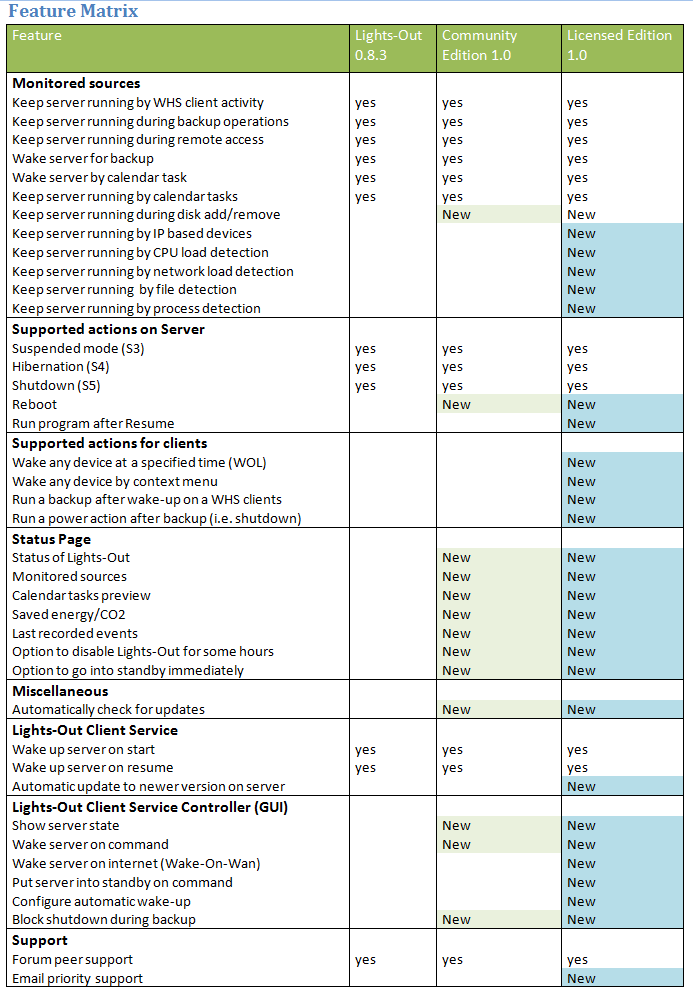
I’m still on the free trial, there is a free community edition and a paid version, there is a matrix comparison here I’m not quite sure yet what will stop working when my trial runs out however.

The only issue I have with Lights Out, is that I have a monitor keyboard and mouse hooked up to my WHS that is in the office room. If I am the WHS console directly it keeps going to sleep on me automatically if no other clients are active on the network. I have to remember to disable the Lights Out first.

Overall it works well and its certainly worth checking out. I just hope both of these types of features will be native in WHS Vail or these 3rd party developers release new versions for WHS Vail.

www.phaze1digital.com